
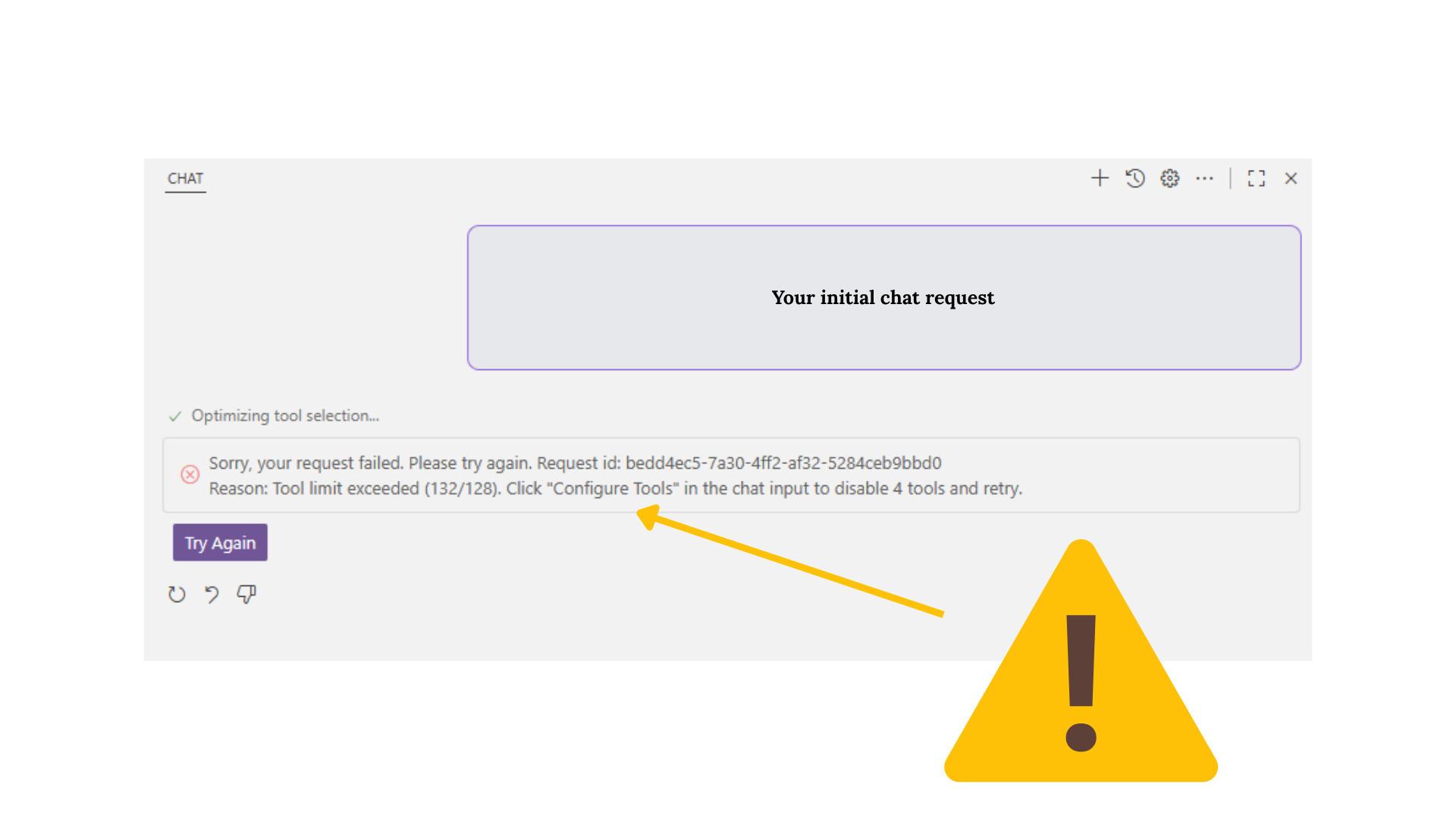

Yikes. Visual Studio Code has blocked your AI chat request. It is telling you that you have exceeded the tool limit in Visual Studio Code. Do not worry. You can fix this within 5 minutes. This is how you do it.
The actual error
This is the error you will be able to fix in your Visual Studio Code after following this short guide.
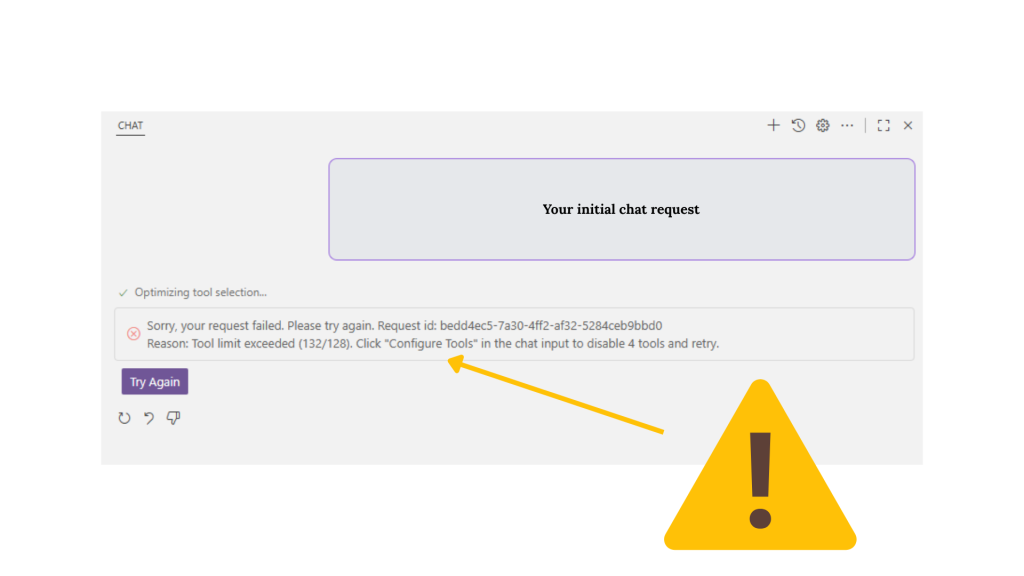
“Sorry, your request failed. Please try again. Request id: bedd4ec5-7a30-4ff2-af32-5284ceb5bbd0
Reason: Tool limit exceeded (132/128). Click ‘Configure Tools’ in the chat input to disable 4 tools and retry.”
What happened
Visual Studio Chat counted enabled tools and found 132 entries. The server enforces a 128-tool limit. The server rejected the request and returned a request id for diagnostics.
How to fix
You can fix the tool limit exceeded error easily. You just need to take the following steps:
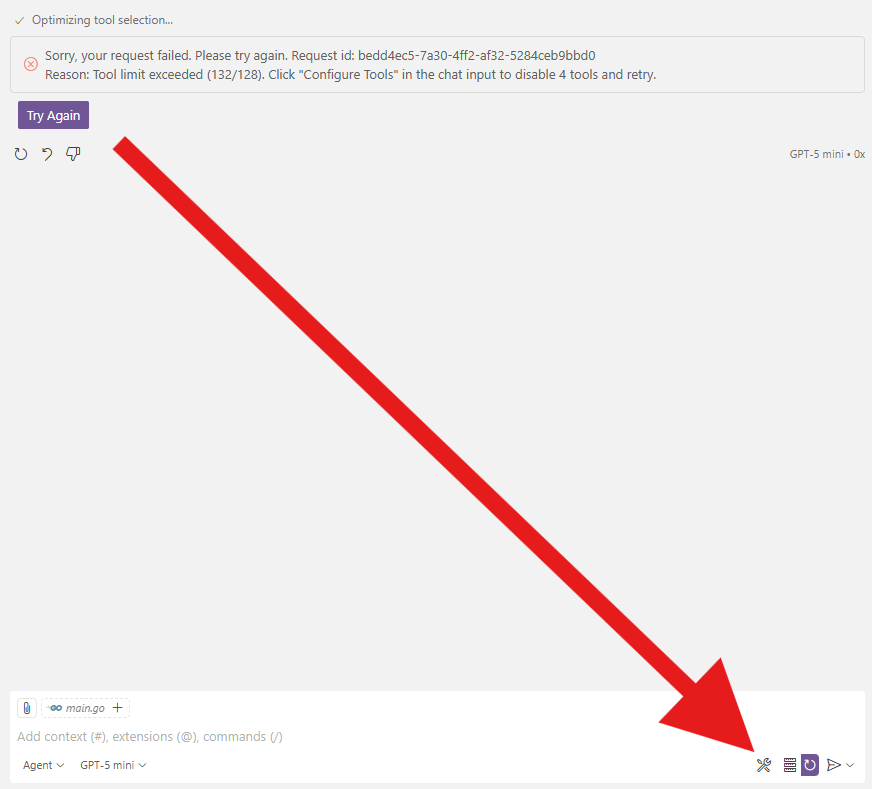
- Click on the configure button as seen in the step 1 image below. A new list will open.
2. In the tools list. Select only the tools you actually need.
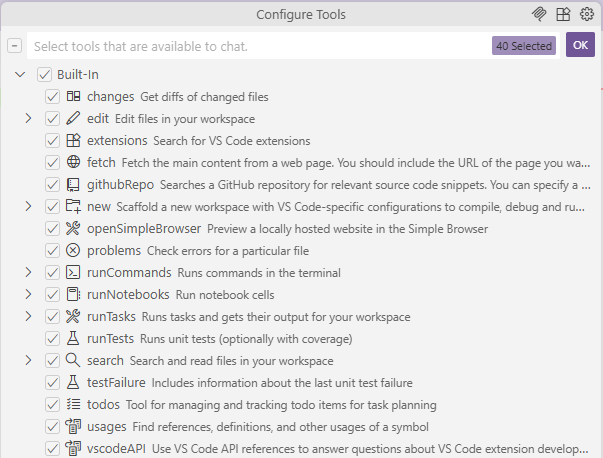
3. After selecting the needed tools, click on OK.
You are all set.
Prevent this in future
- Keep only the tools you need per chat.
- Create minimal tool profiles for common workflows.
- Audit enabled tools after installing extensions or workspace templates.
Key takeaway: disable unneeded tools in Configure Tools, retry the request, and keep the request id for support if you must escalate.